Image Edit 1.0
AI Editor's Image Edit 1.0 model allows you to edit specific parts of an image using simple, targeted prompts. By using precise wording to describe the changes you want to make, you can guide the model more accurately and produce cleaner results. This guide covers the basics of how to write effective prompts for Image Edit 1.0.
Use Image Edit 1.0
To use Image Edit 1.0 in AI Editor:
- Open Effect House and go to the Tool Bar
- Click AI Editor to open the AI Editor window
- Under Image Model, go to Base Model
- Select Image Edit 1.0
- Enter a prompt. (Refer to the Prompt Best Practices below.)
Prompt Best Practices
Using a clear and explicit prompt usually achieves better generated results. We recommend structuring your prompts using this format: change action + change object + change feature
For example: "Change the character's hair to red"
| Component | Description | Examples of words to include |
|---|---|---|
| Change Action | Refers to the action mode of change. | Remove / Add / Replace / Reference |
| Change Object | Refers to the object that is being changed. | Subject / Background / Light and shadow / Clothing / Hair |
| Change Characteristics | Refers to the desired effect after the change. | Bright / Rough / Rainy background / Long / Blue |
When you have clear character images or personality traits you want to preserve, you can upload an image as a reference to help keep the character consistent.
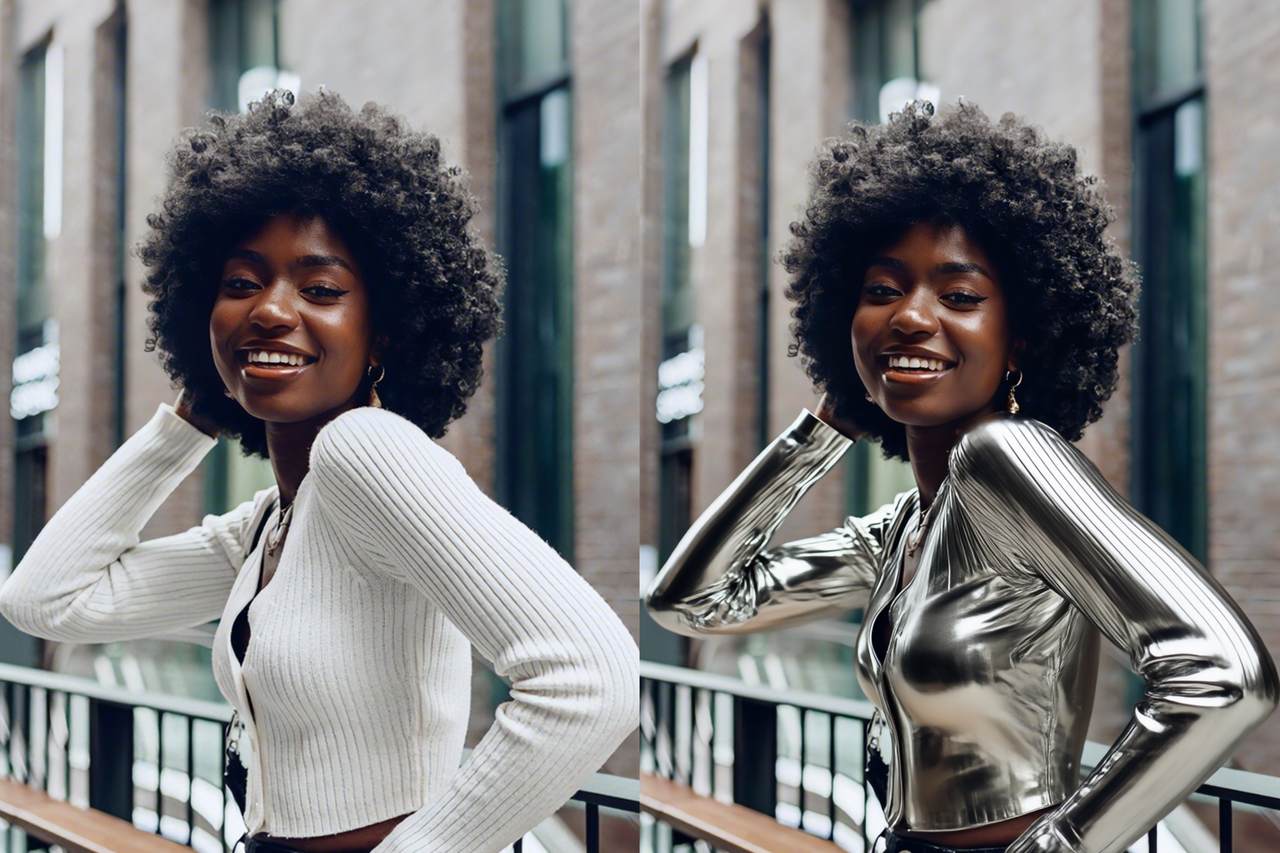 Keep the same pose and change the character's clothing | 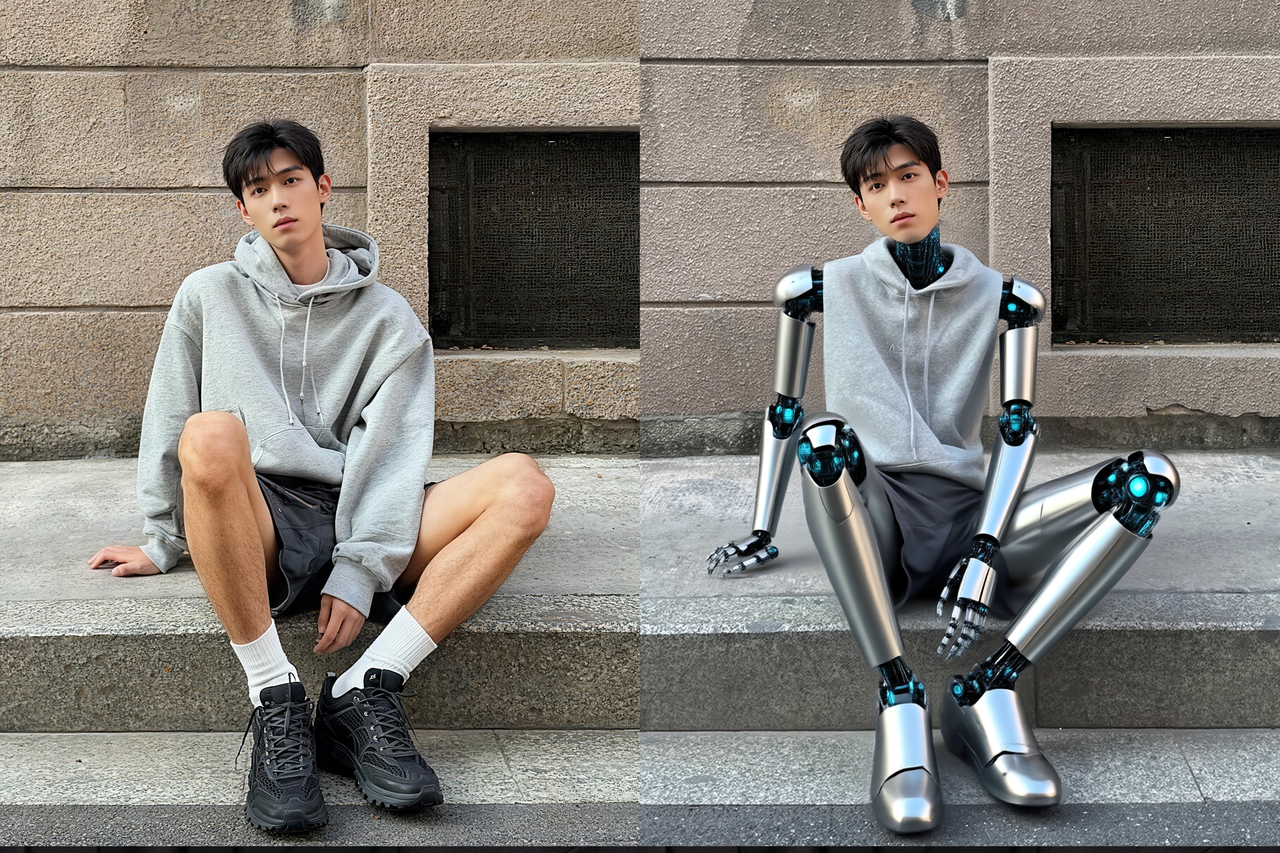 Maintain posture and change body parts | 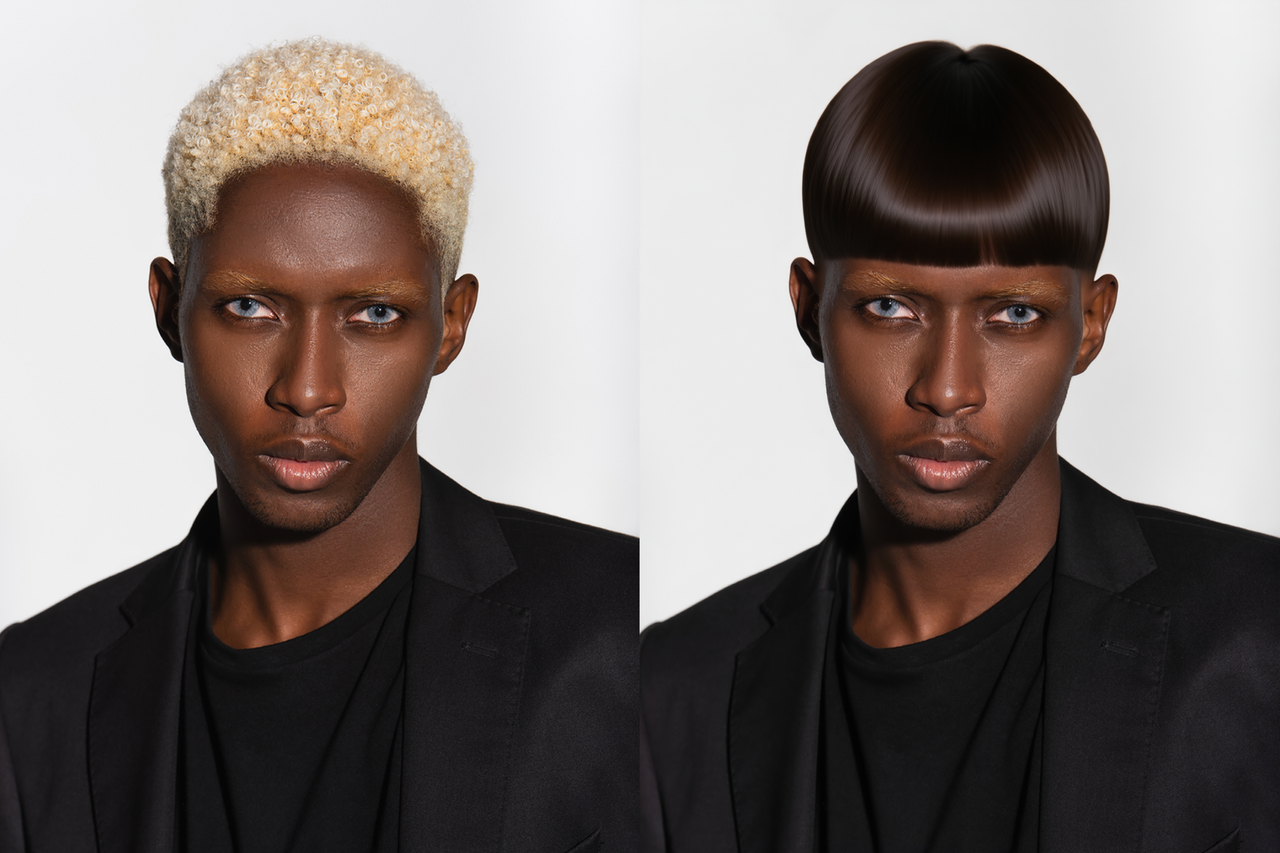 Retain character features and change hairstyle |
Using precise style terms or uploading an image as a style reference can also help you achieve more accurate and desirable results.
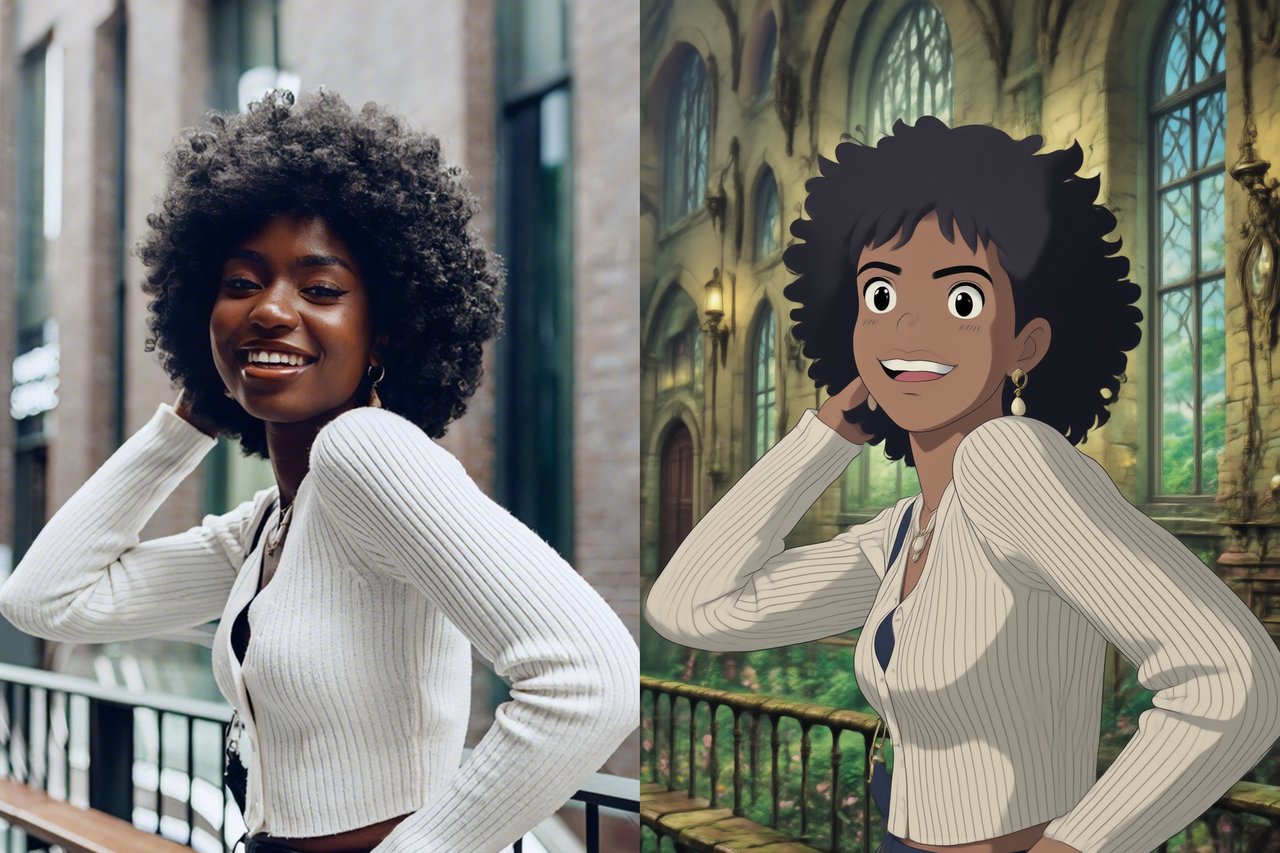 Enter "style words" | 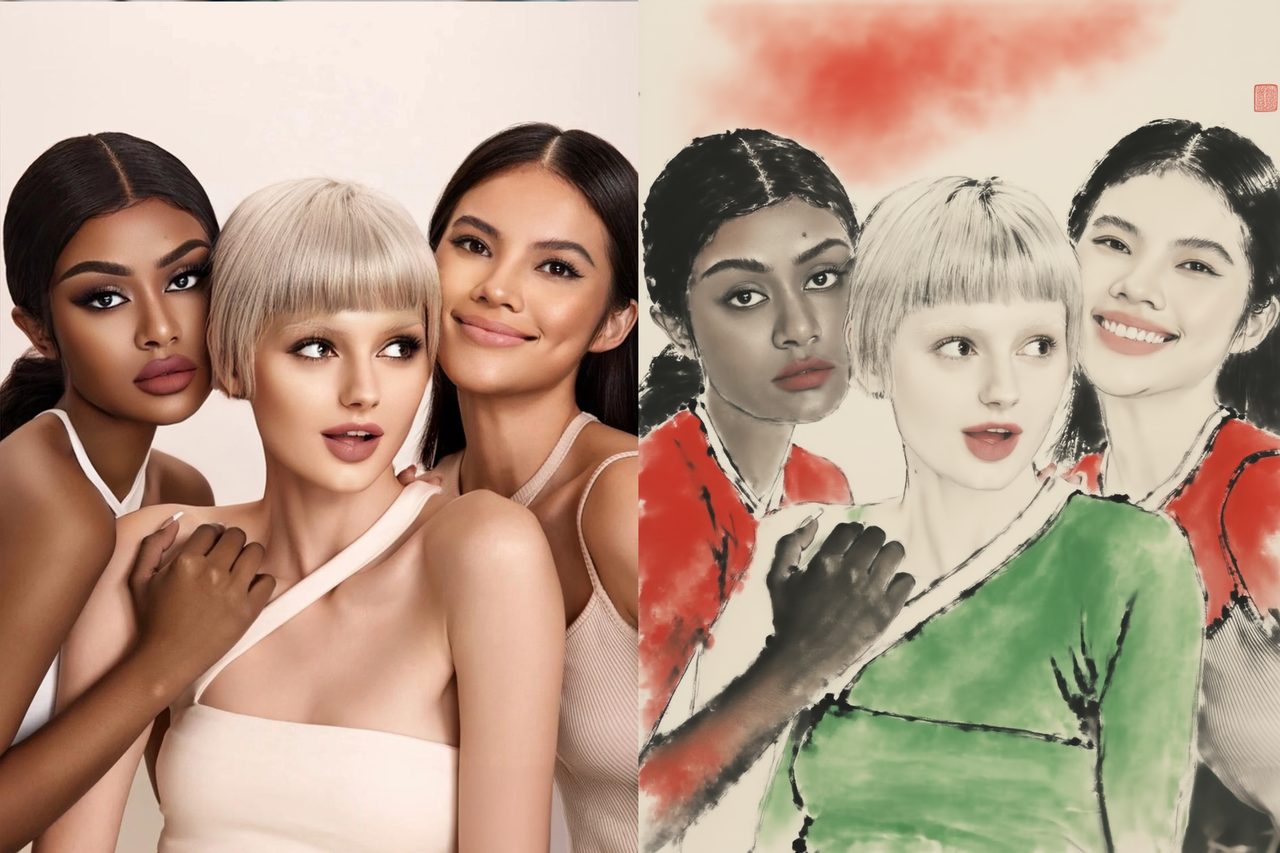 Enter an "art genre" | 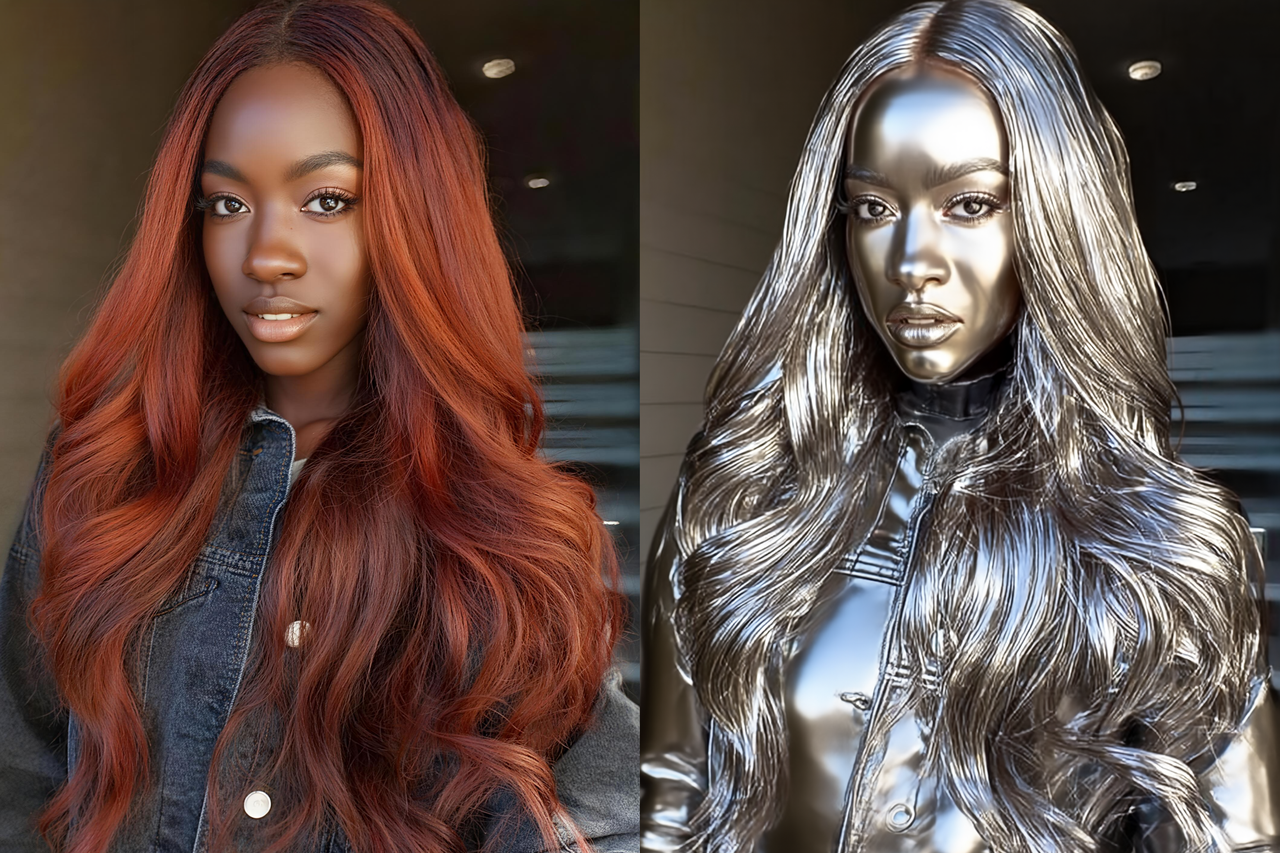 Enter a "material term" |