Create an AI Effect Using AI Editor
Create an AI Effect Using AI Editor to apply custom styles to your effect. You can start by selecting a preset base model and personalizing it using text prompt and additional settings to apply to your effect. In this guide, we'll show you how to take the Morning Dew theme creation and customize it's prompt to make it into your own!
Learn more about the available Image Models that you can choose from
- Open Effect House and navigate to the Tool Bar
- Click AI Editor to open the AI Editor window
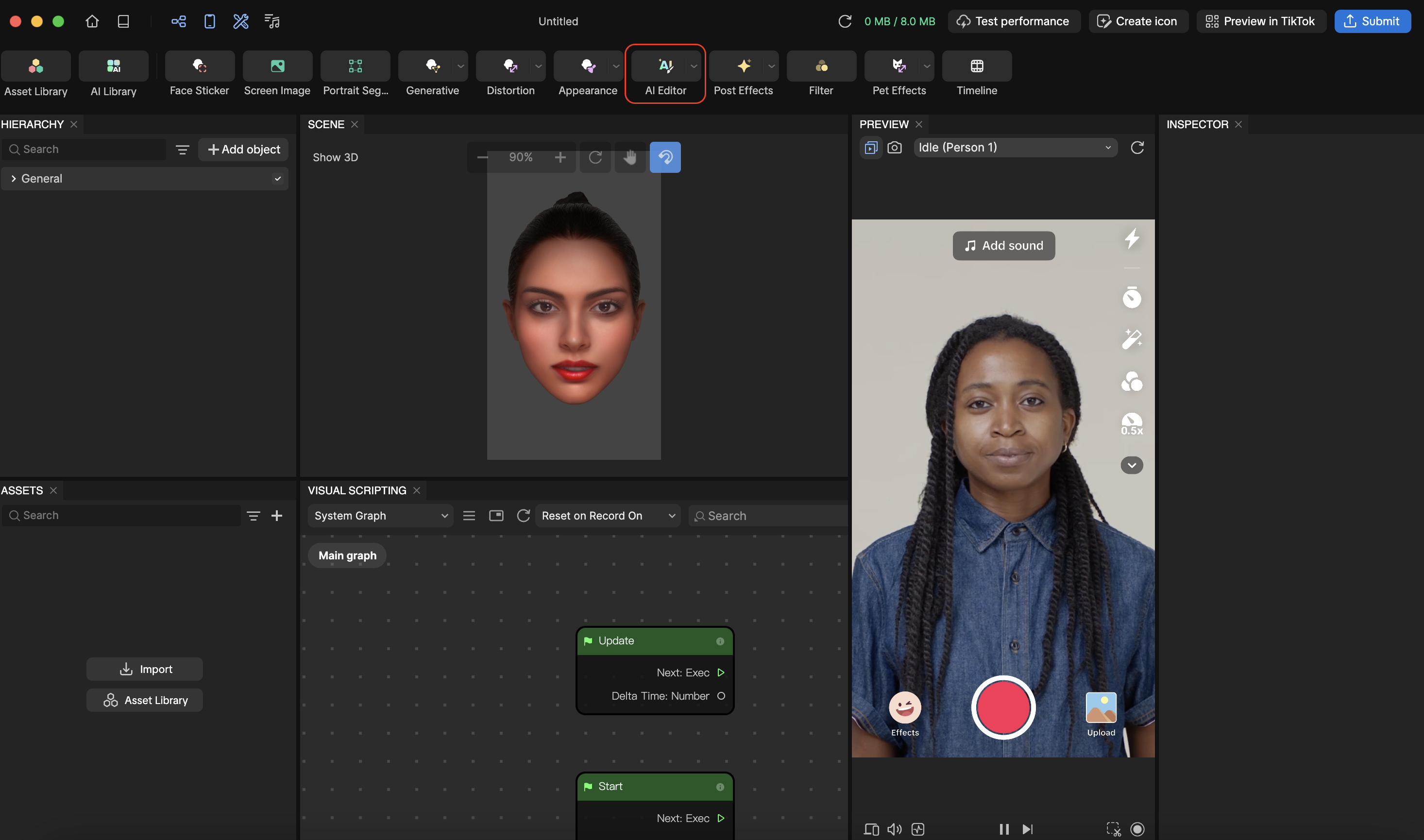
- From the Preset Library, go to Morning Dew
- Click Edit

You can also hover over the models to see a preview of the prompt used

- Now the Image Generator opens. Let's click Generate to see the results of the existing model!
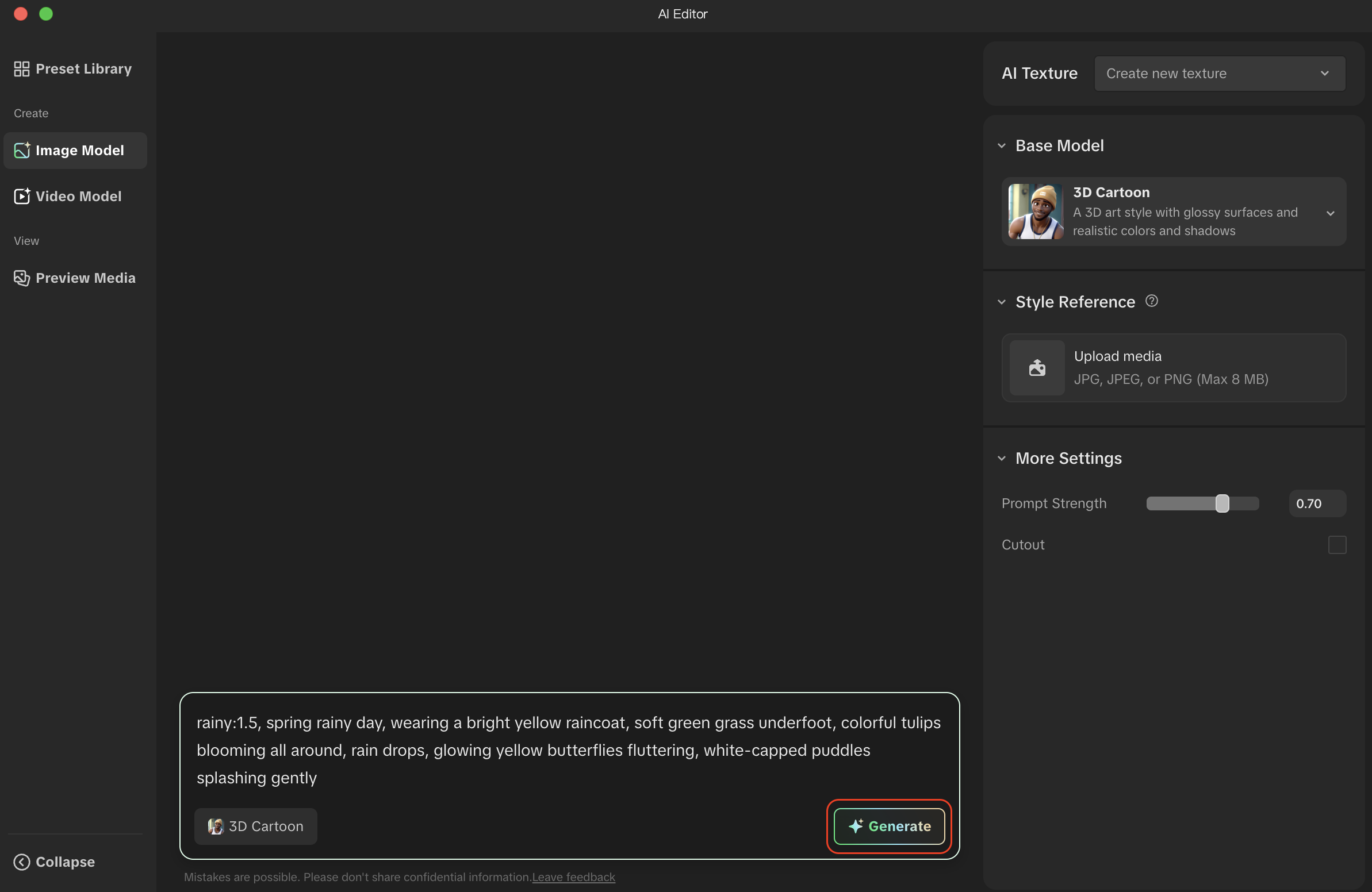
Now we can see the following result from the existing prompt
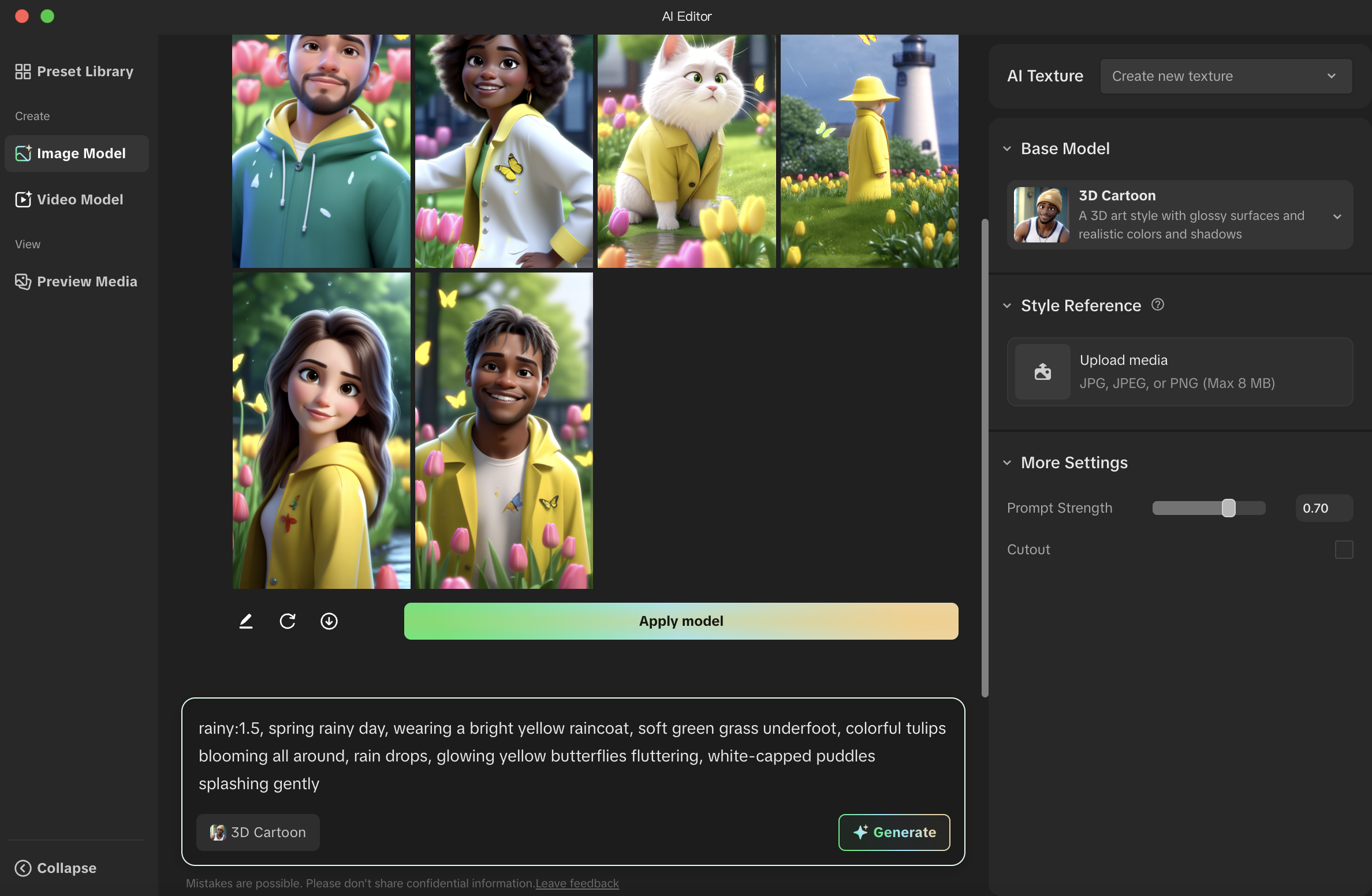
Next, let's customize the model and make it into our own creation:
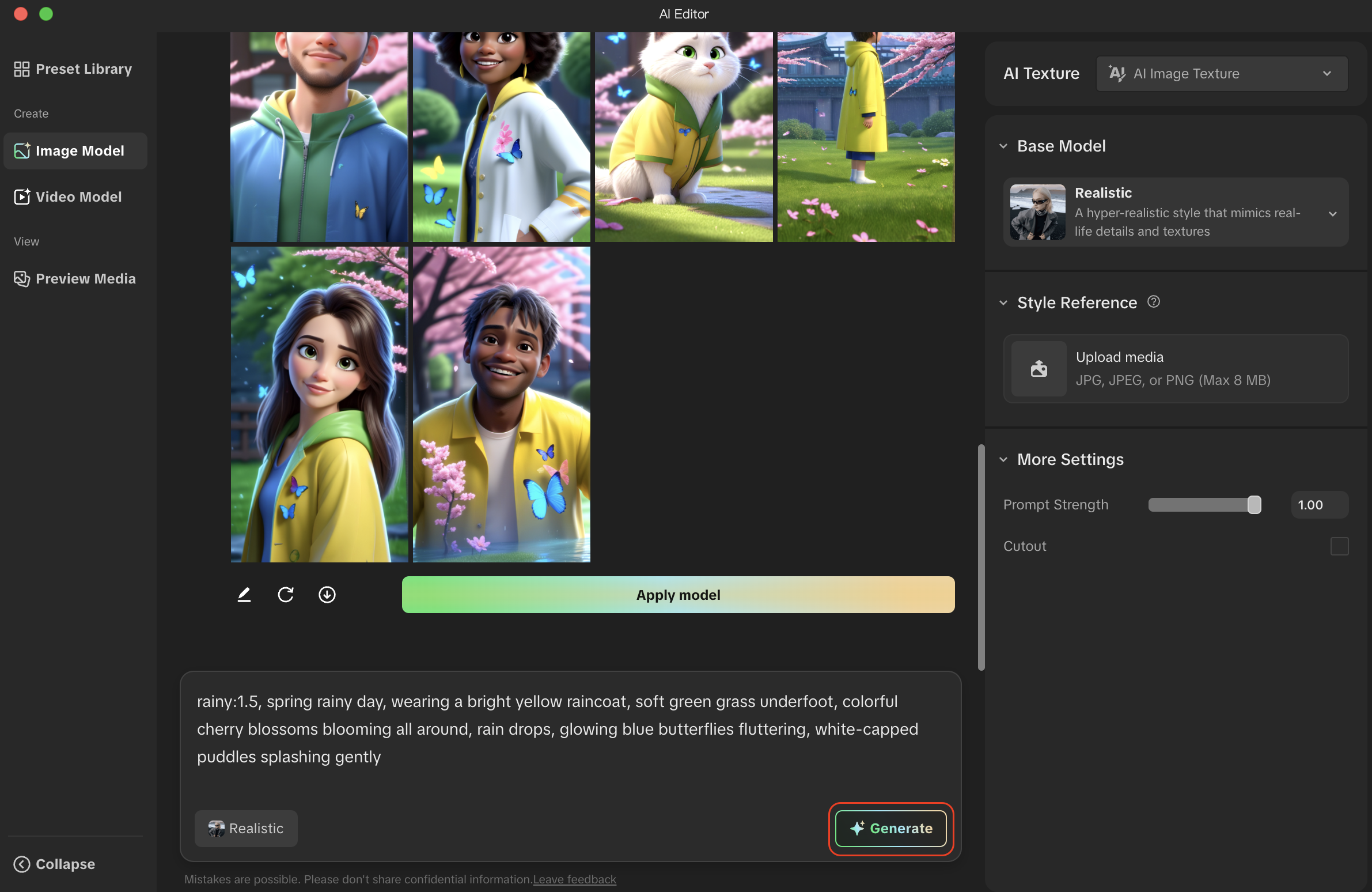
- In the prompt box, let's go ahead and customize the prompt by changing the type of flowers from tullips to cherry blossoms and the color of butterflies from yellow to blue. Be sure to use clear and specific language to describe your vision, ensuring the prompt adheres to our Community Guidelines. See How to Write a Well-Crafted Prompt for inspiration and additional guidance.
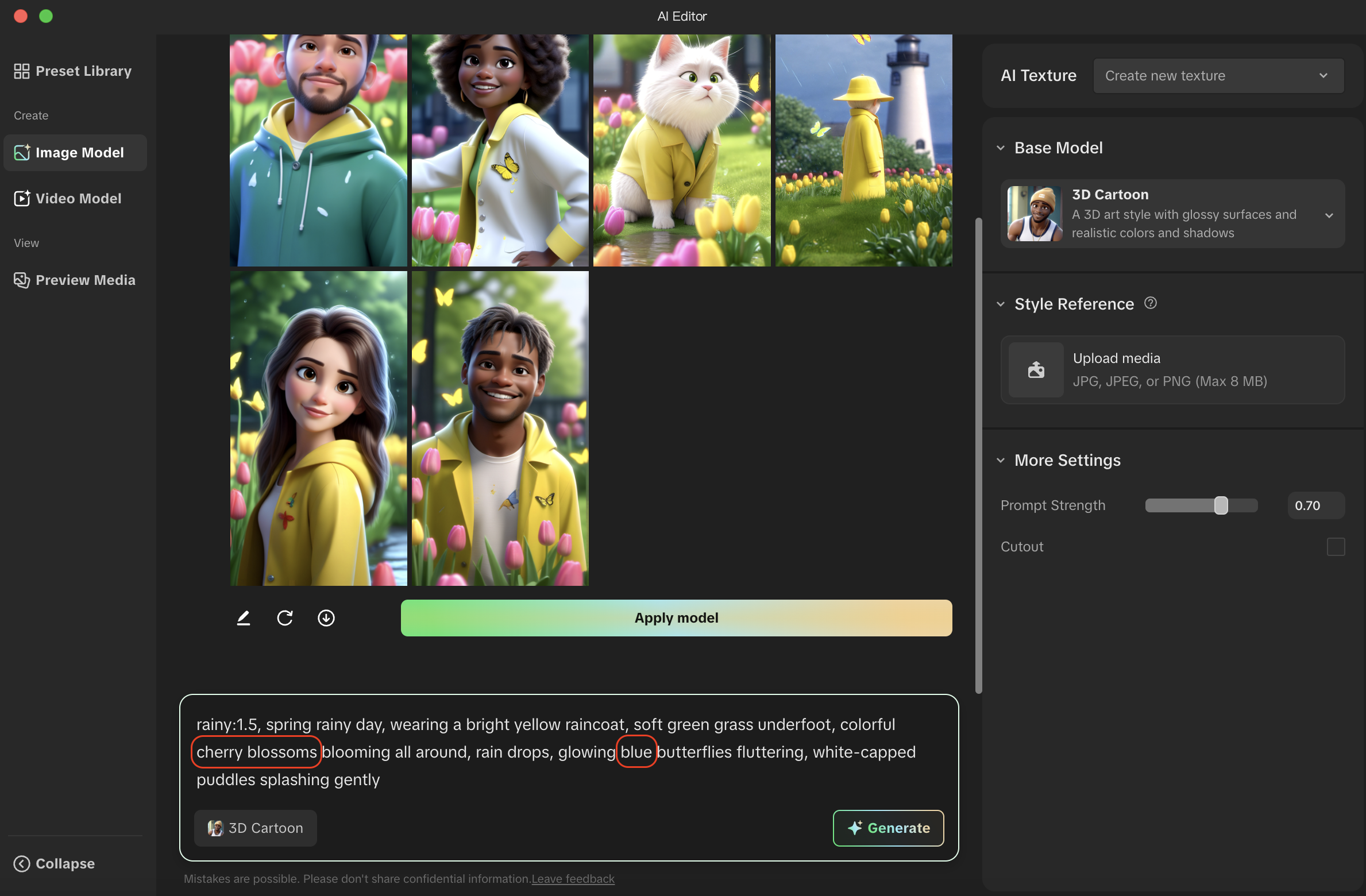
- Click Generate to apply your prompt to the base model
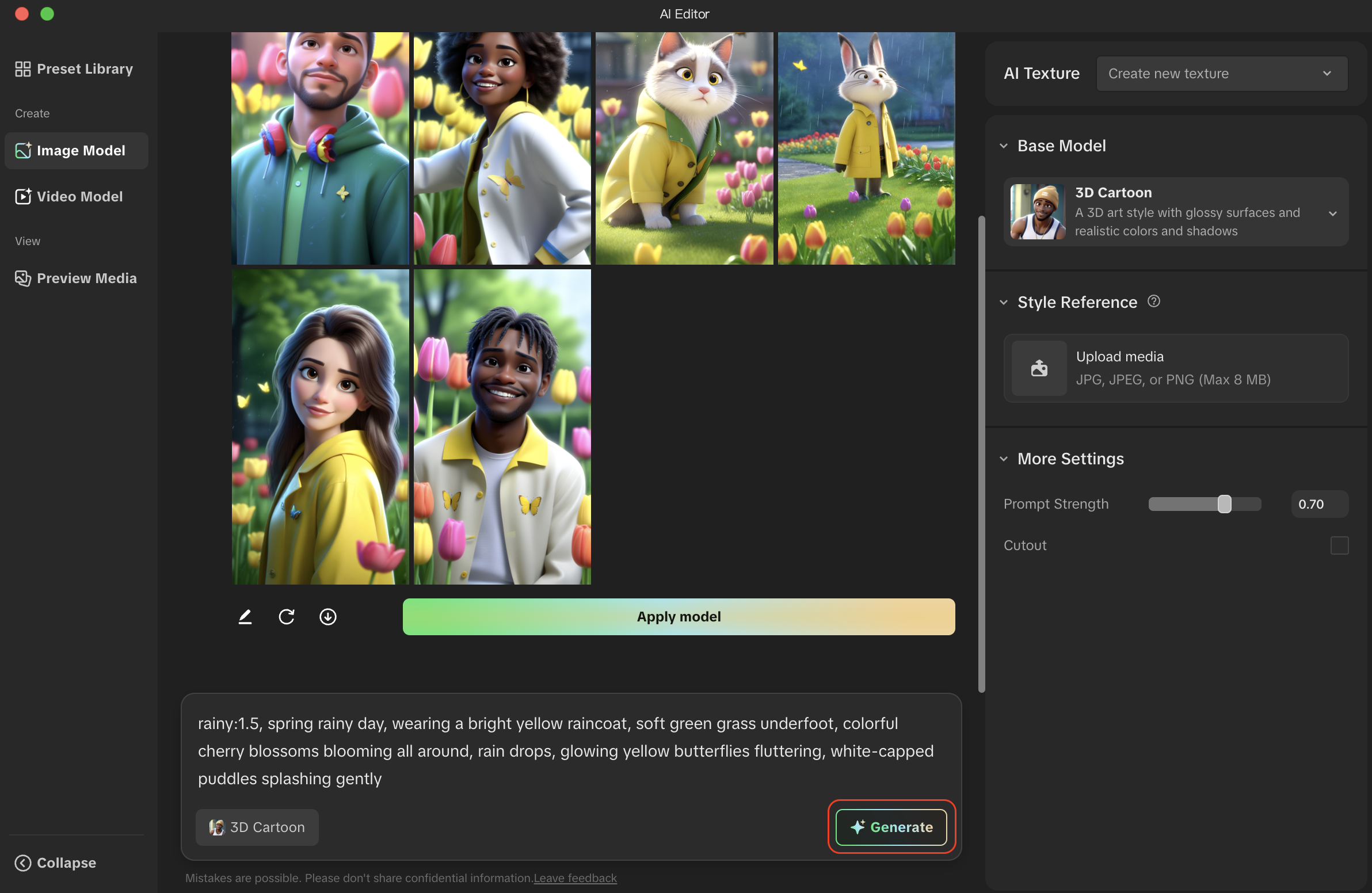
Images using your customized AI model are now displayed
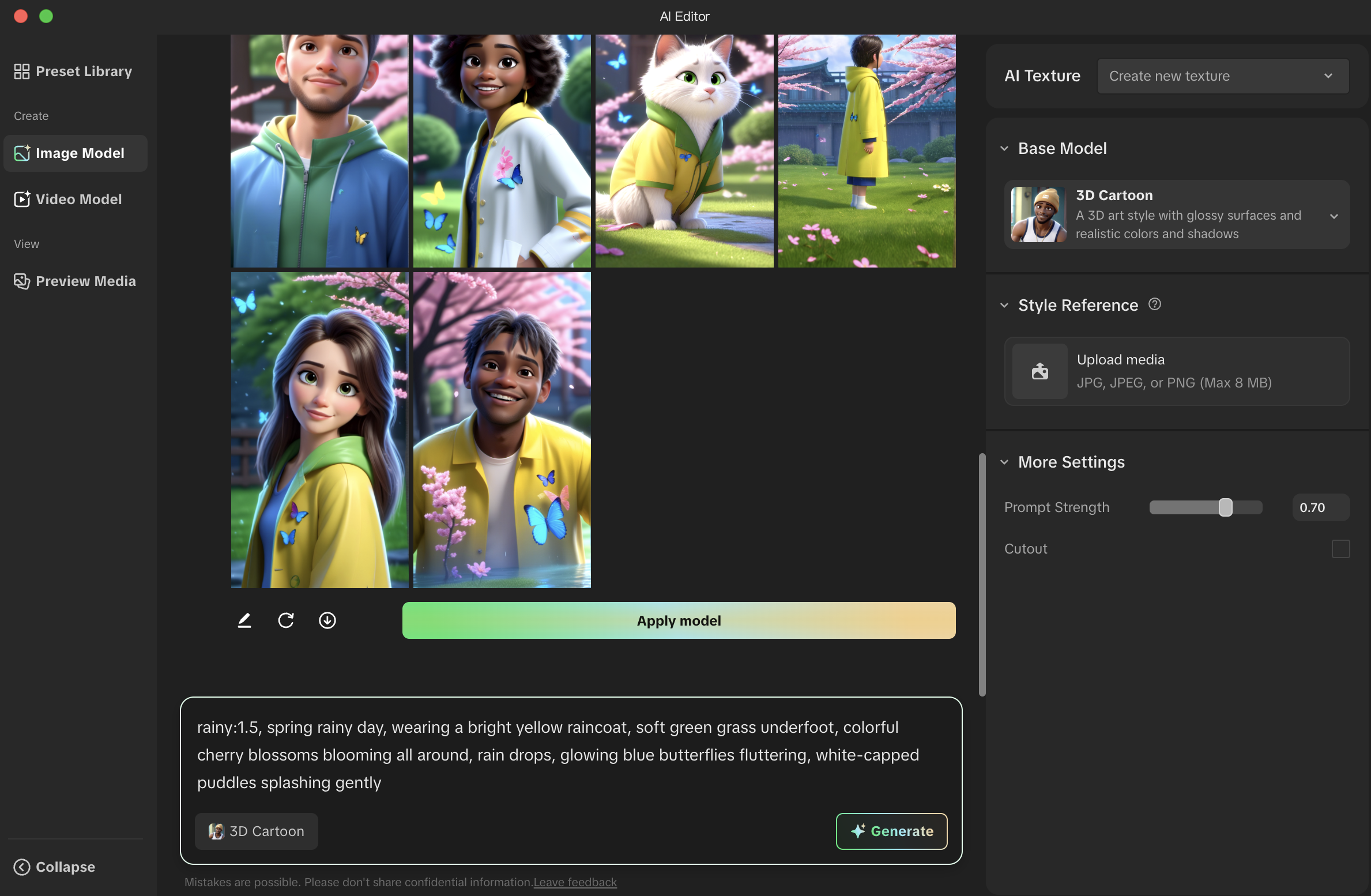
- Click Apply model or continue to further customize the model by refining your prompt or adjusting the settings on the side panel
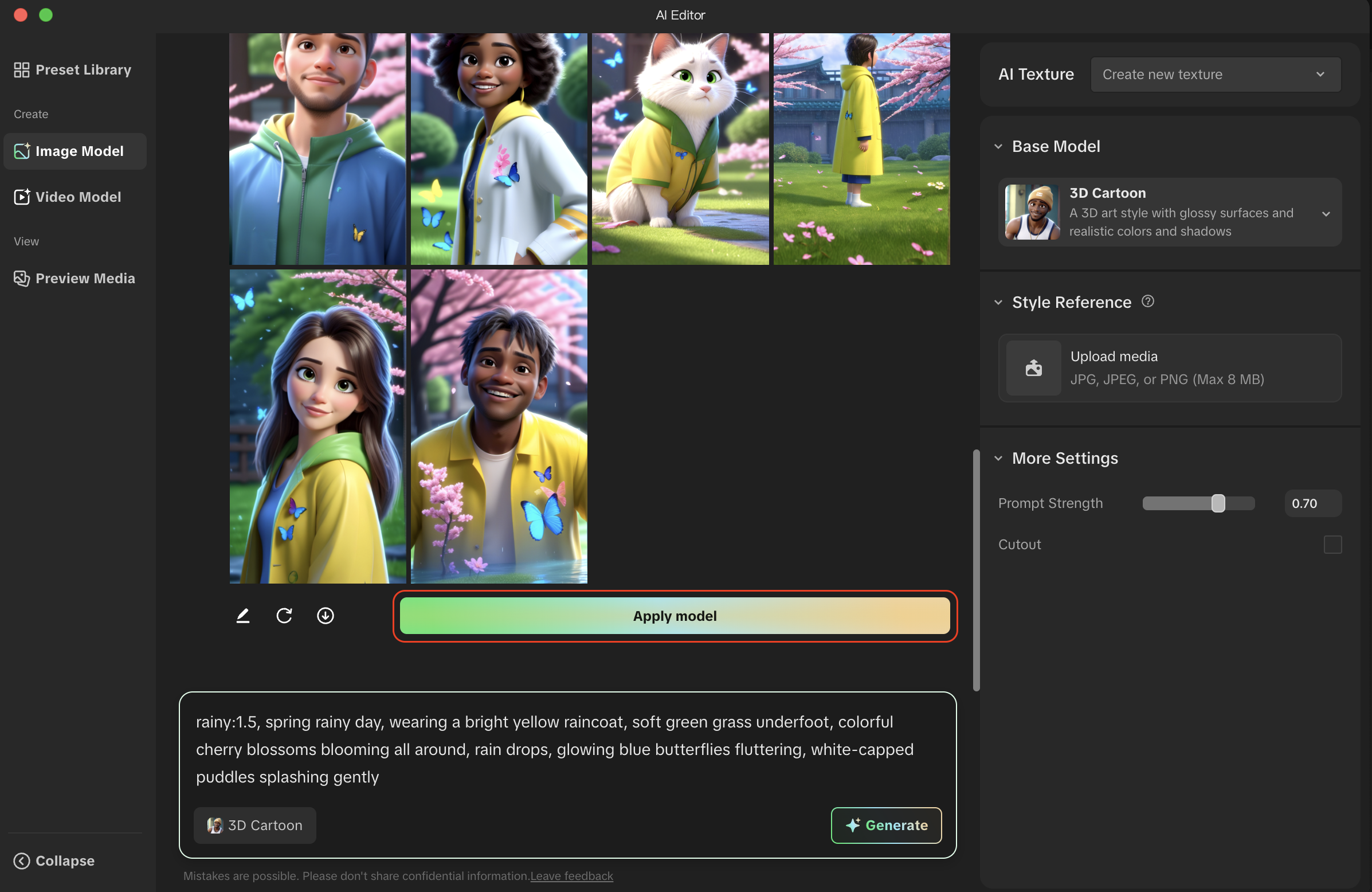
Your customized model is now applied to your effect!

Change Base Models
The models available in your version of Effect House may change over time as new models are added and some existing models are removed.
Now, let's say you want to change the base model to another base model.
- In the Inspector panel, go to the Image component
- Under Art Style, click the Base Model field to reopen AI Editor
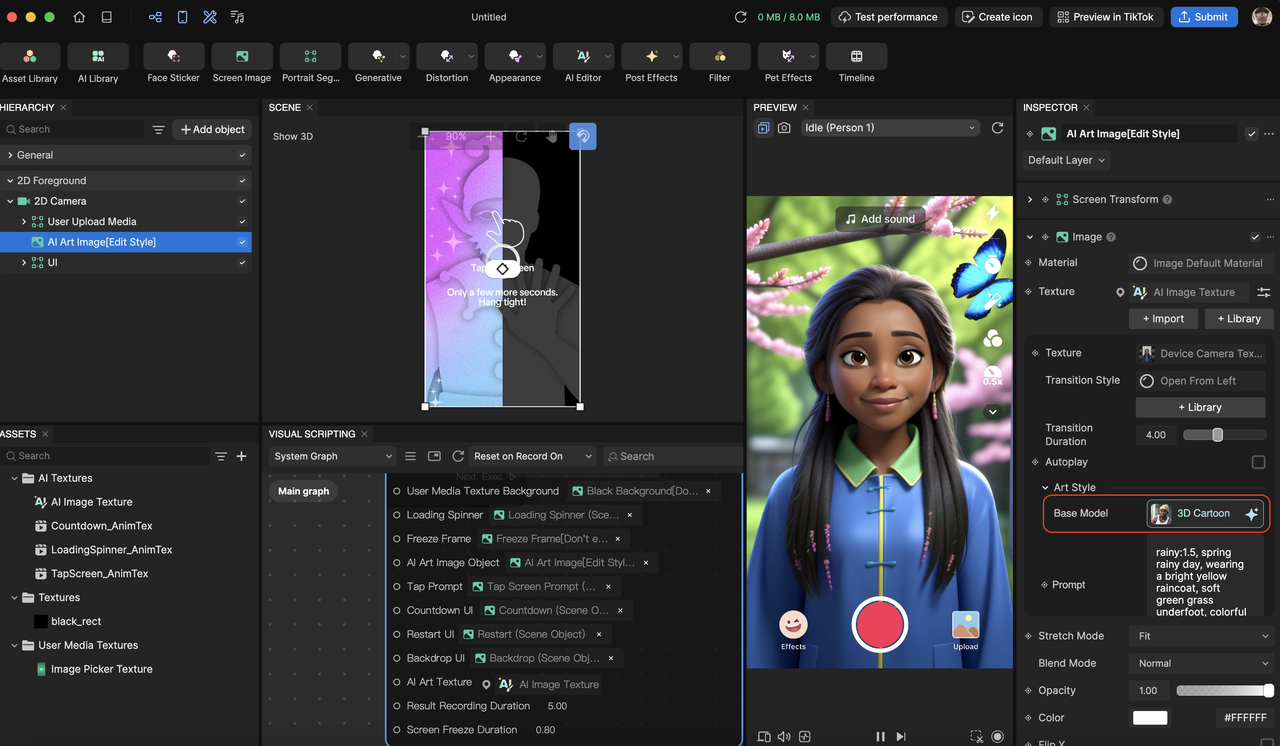
On the side panel, select a new base model from the list
Click Generate
- Click Apply Model to apply the new base model to your effect!
Your new base model is now applied to your effect!