Face Sticker
Use Face Sticker to anchor 2D assets on a face. You can then manipulate where and how the asset is anchored to the face.

Add a Face Sticker Object
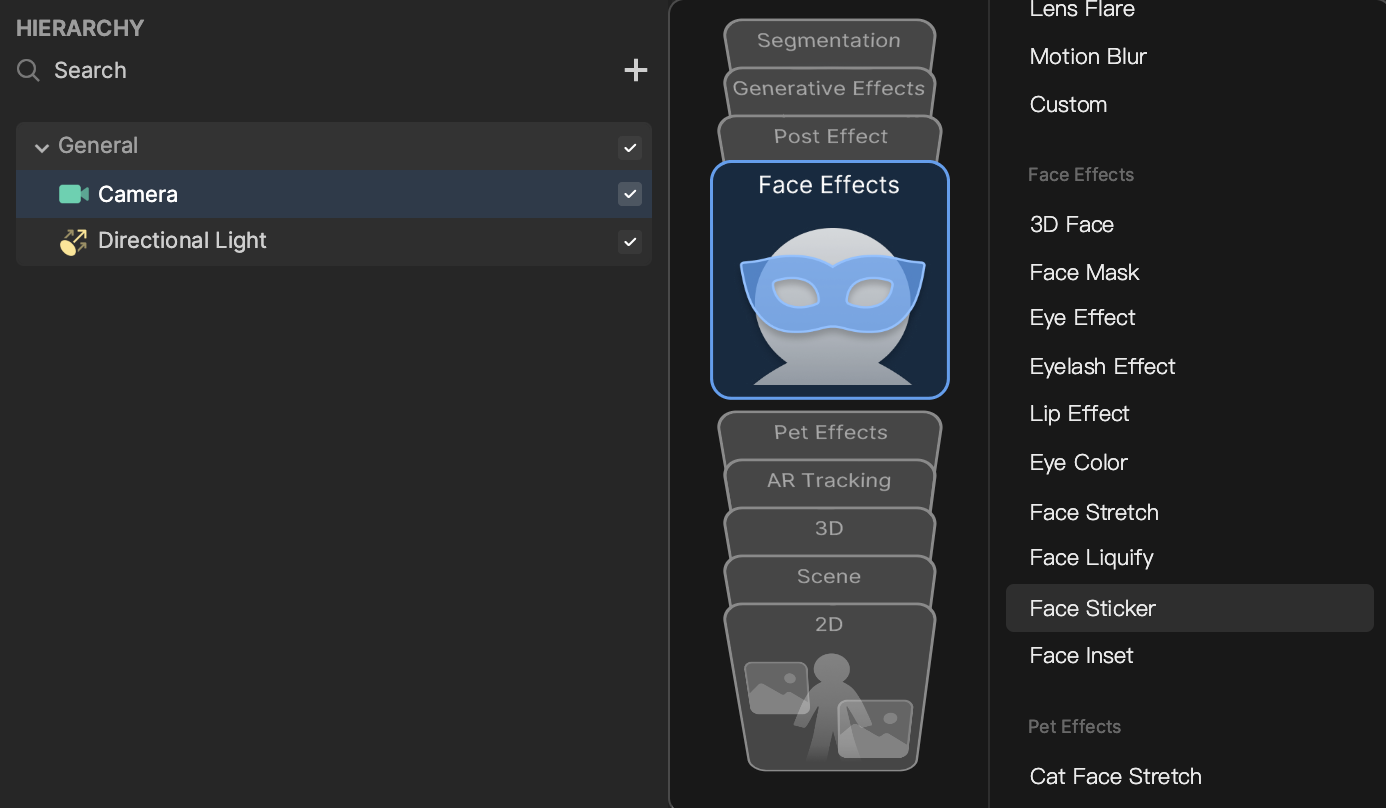
Add a Face Sticker object by clicking the Add button [+] > Face Effects > Face Sticker in the Hierarchy panel.
Once a Face Sticker is added to the Hierarchy panel, the 2D scene will automatically populate a face with landmarks.
Use the Face Sticker Object
Use a Custom Image
Replace the Default_Texture of the Image component with your custom image. Learn more about configuring the Image component’s properties.

To import a static image, click the Add button [+] > Import > From Computer, or simply drag the image into the Assets panel. Learn more about best practices for image assets.
Use a Custom Animation
You can apply an animation as the face sticker. Learn more about using a 2D Animation Texture
Move a Face Sticker in the Scene
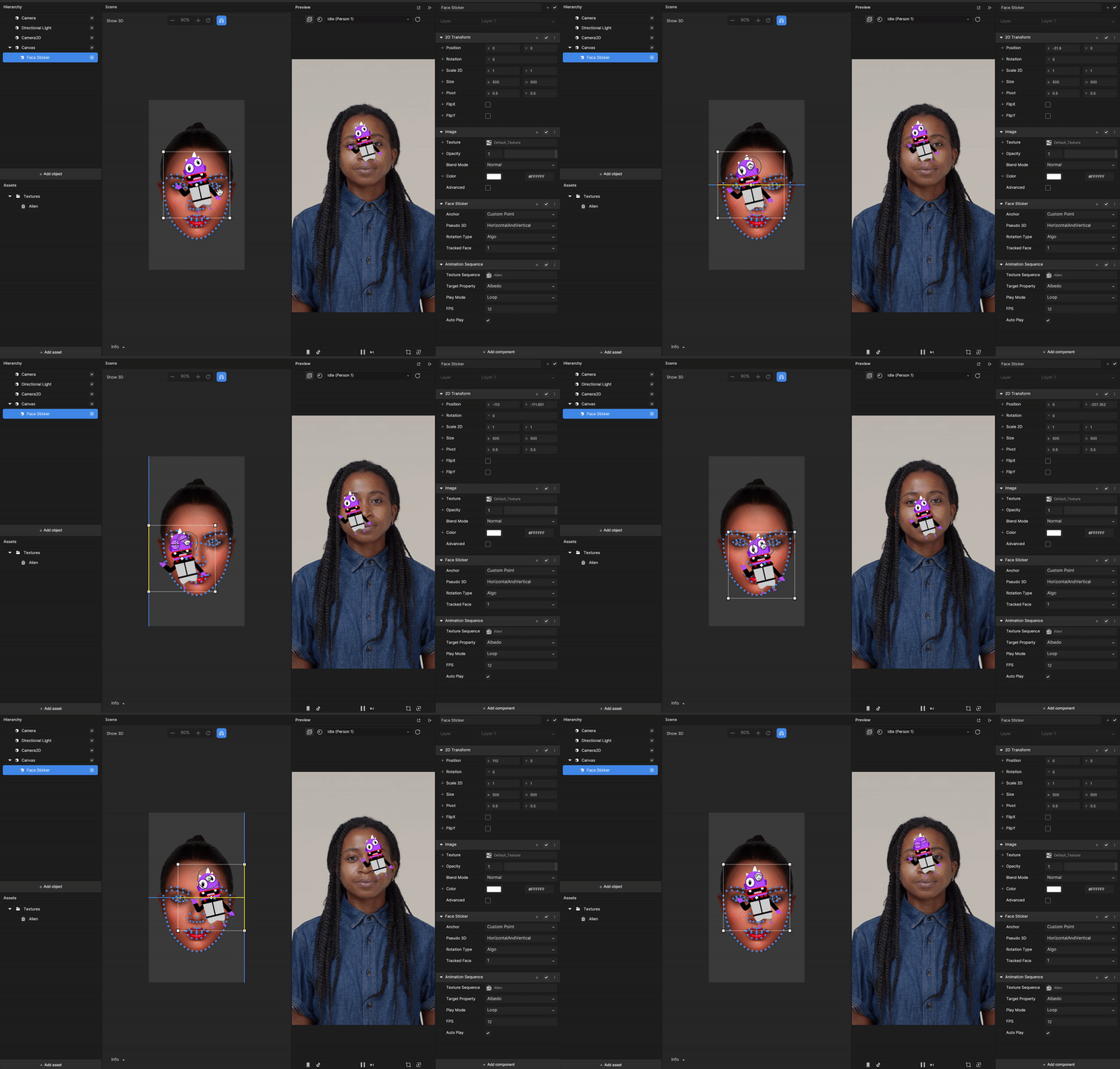
Drag the image within the panel. The picture will snap to the nearest landmark once you release it. You can also drag the pivot to snap to a specific landmark point.
Components
The Face Liquify object is made up of the following components, found in the Inspector panel:
Demo Effect: Emoji
Check out this tutorial to learn how to create an interactive Face Sticker effect!