Bling
Use Bling to create sparkling effects using both the front and back cameras. Bling offers more flexibility when making visual adjustments.

Download this file to following along:
Add a Bling Object
To add a Bling object:
- Go to the Hierarchy panel
- Click the Add object button [+]
- Go to Post Effect
- Select Bling
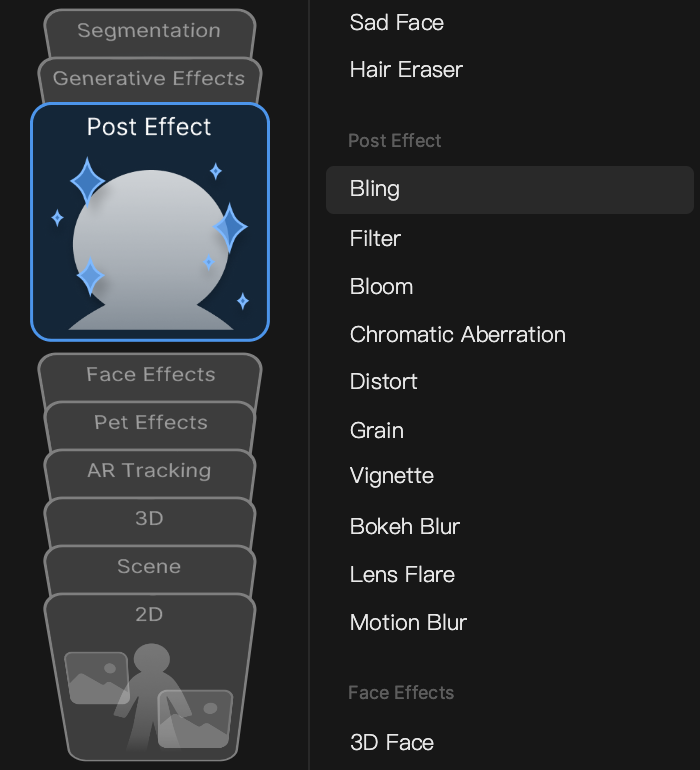
When a Bling object is added, you can find the Bling component in the Inspector panel by default.
Object Hierarchy
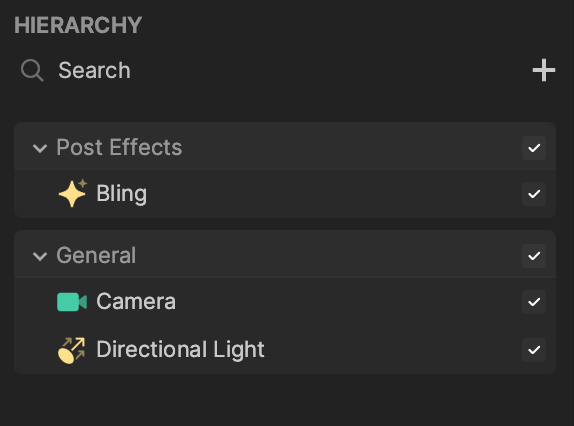
Starting in Effect House v2.0.0, the Bling object is automatically added to the Post Effects render group in the Hierarchy panel. Learn more about render groups.
Components
The Bling object is made up of the following components, found in the Inspector panel:
Import a Texture
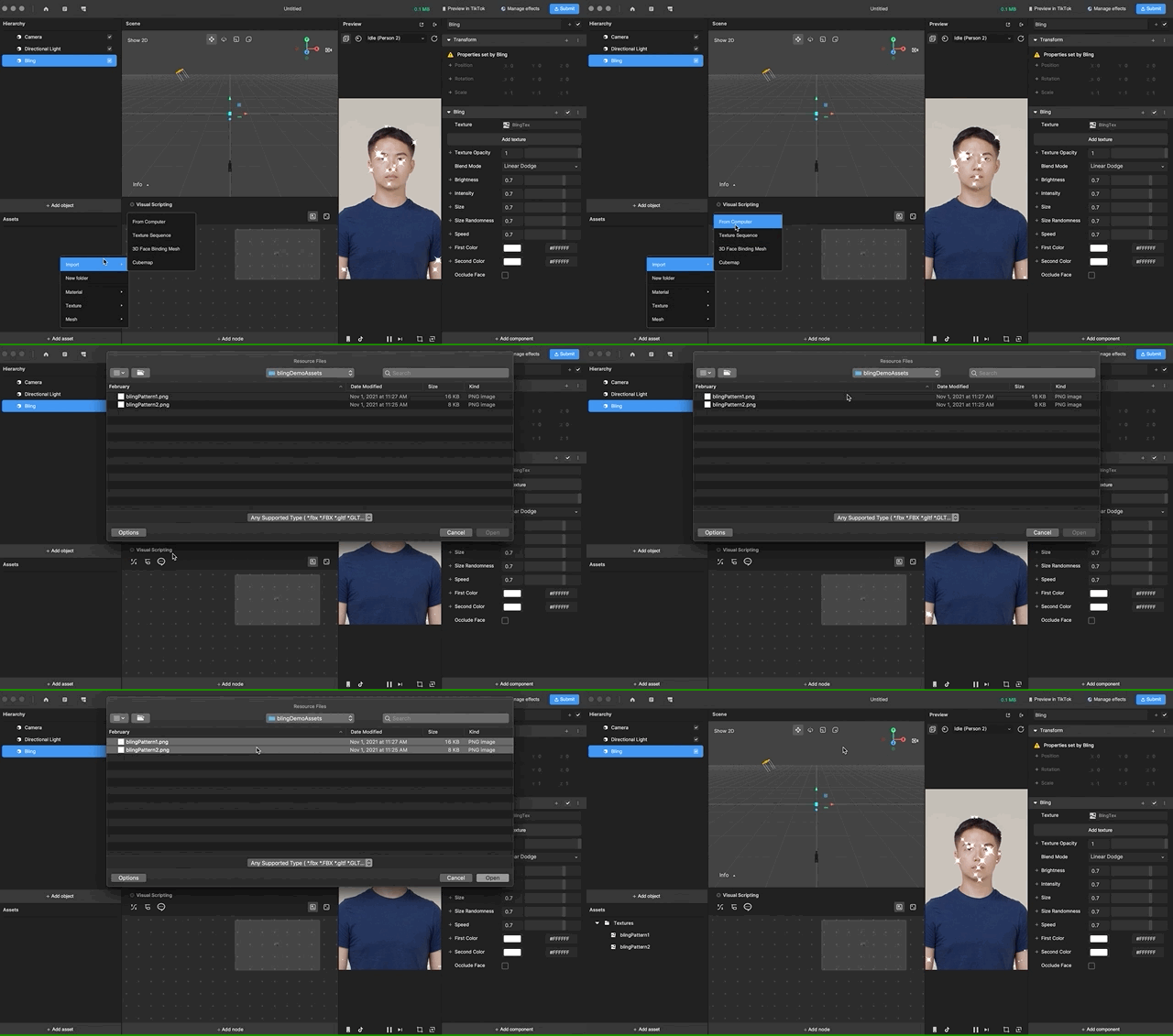
To import your prepared assets:
- Go to the Inspector panel
- Click the Add texture button
- Select Import
- Choose From Computer
It is recommended that your imported assets are 300 x 300 px and a PNG file with alpha channel and monochrome color.
Apply Textures to a Bling Texture
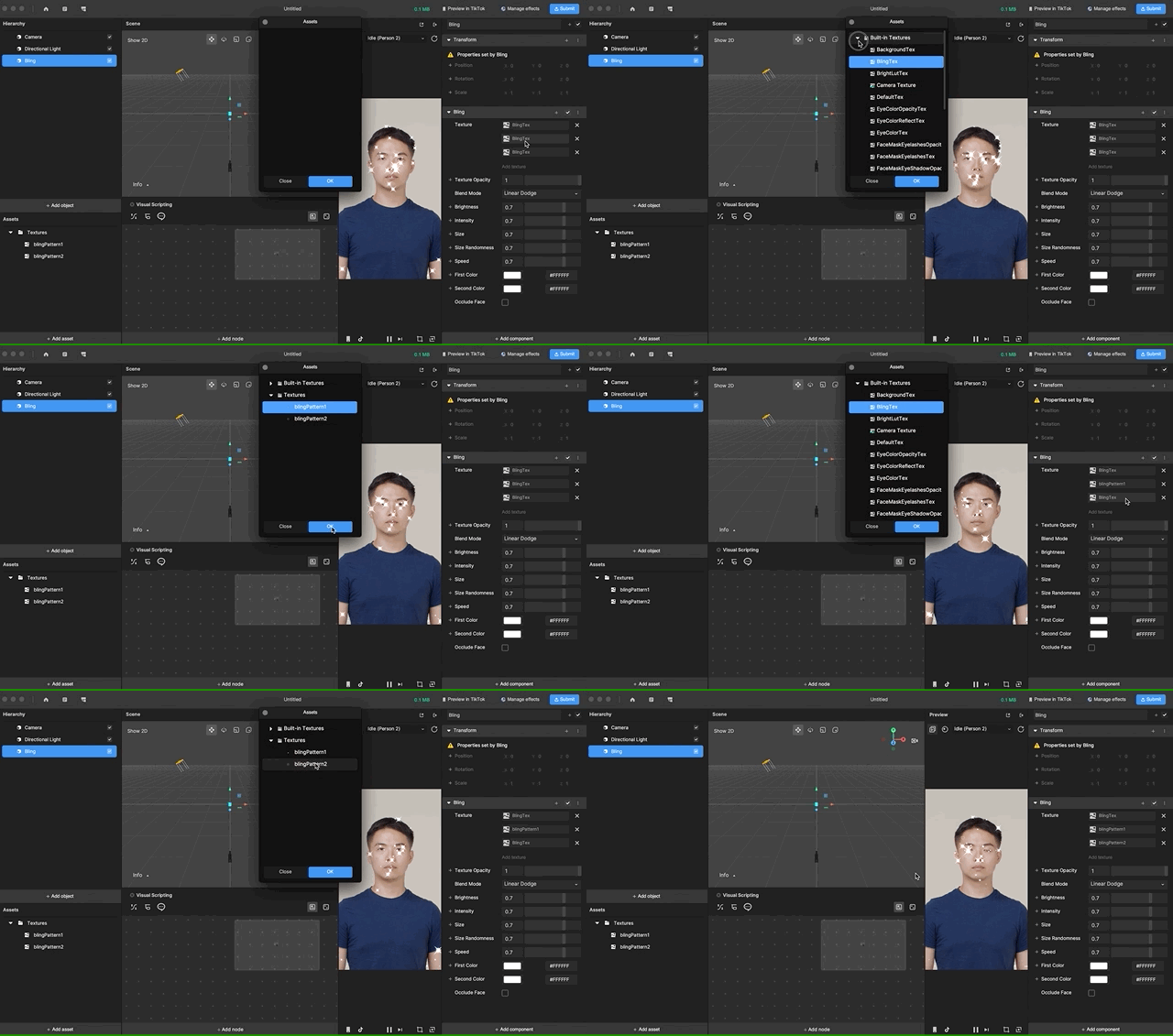
To add textures to the Bling component:
- The Bling component includes a built-in Bling texture by default.
- To add another texture:
- Go to the Inspector panel
- Click Add texture
- You can add up to three textures to a single Bling component.
Click the X icon to remove the respective texture.
Use Multiple Blings
The 2D object render order is directly tied to the order that the 2D objects appear in the hierarchy under the canvas. The lower a 2D object appears in the Hierarchy panel, the later it will be rendered.