Dog Face Reshape
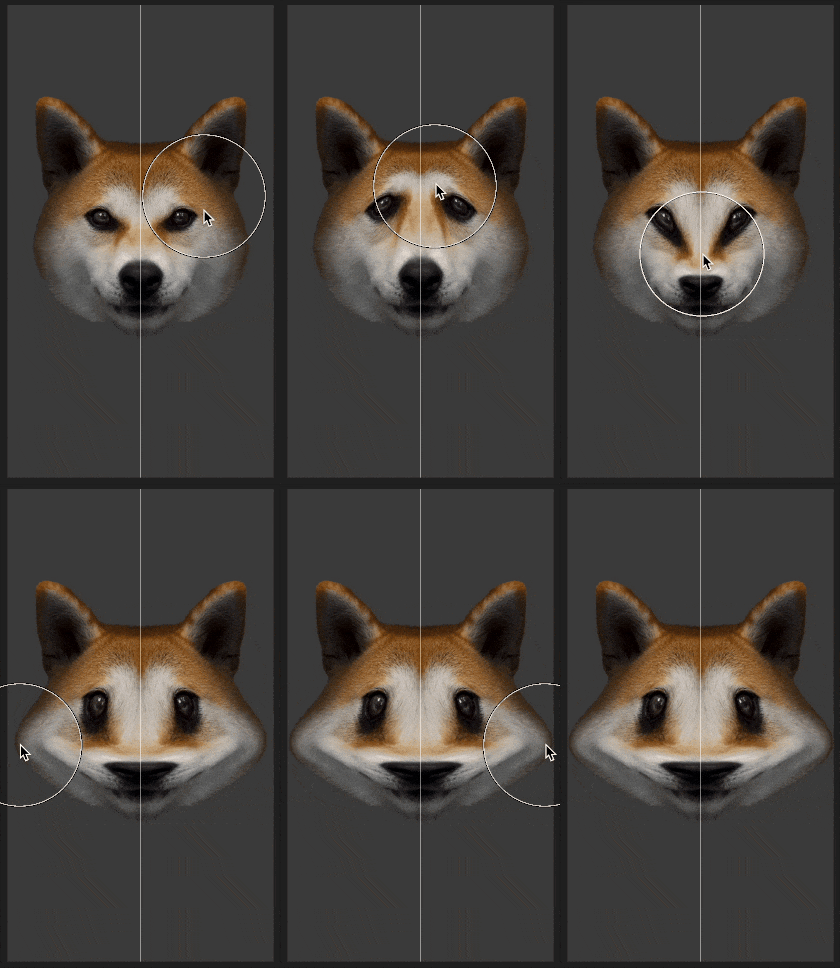
Use Dog Face Reshape to adjust a dog's facial features using a brush tool in the Scene panel. You can drag, bloat, or shrink areas of the face to create customized reshape effects.
Add the Dog Face Reshape Object
To add a Dog Face Reshape object:
- Go to the Hierarchy panel
- Click the Add object button [+]
- Go to Pet Effects
- Select Dog Face Reshape

Dog Face Reshape in the Scene Panel
In the Scene panel, use Dog Face Reshape to alter the shape of a dog's face using a brush tool. You can drag, bloat, or shrink areas of the face to create customized reshape effects.
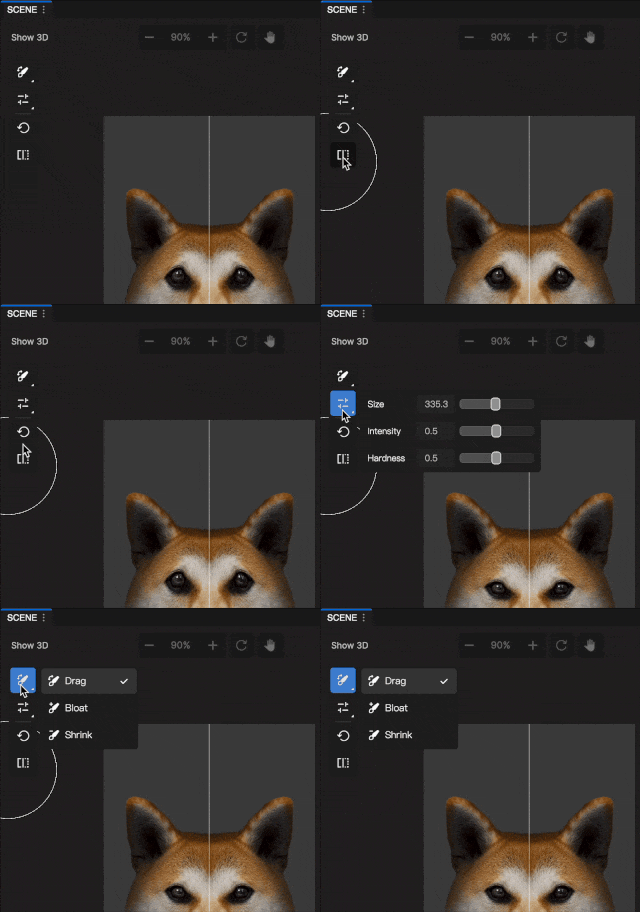
Change Brush Type
To change the brush type:
- Go to the Scene panel
- Click the Brush button

- Choose a brush type:
- Drag: Moves the brushed area in the direction you pull, letting you reposition or reshape features
- Bloat: Expands the brushed area outward to make it larger or fuller
- Shrink: Compresses the brushed area inward to make it smaller or tighter
Change Brush Settings
To adjust the brush settings:
- Click the Brush Settings button
- Adjust the following parameters:
- Size: Controls how large or small the brush stroke appears
- Intensity: Controls how strong the brush effect looks when applied
- Hardness: Controls how sharp or soft the brush edges appear

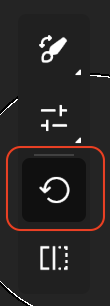
Reset Brush Settings
To reset the brush settings to their original state, click the Reset button.
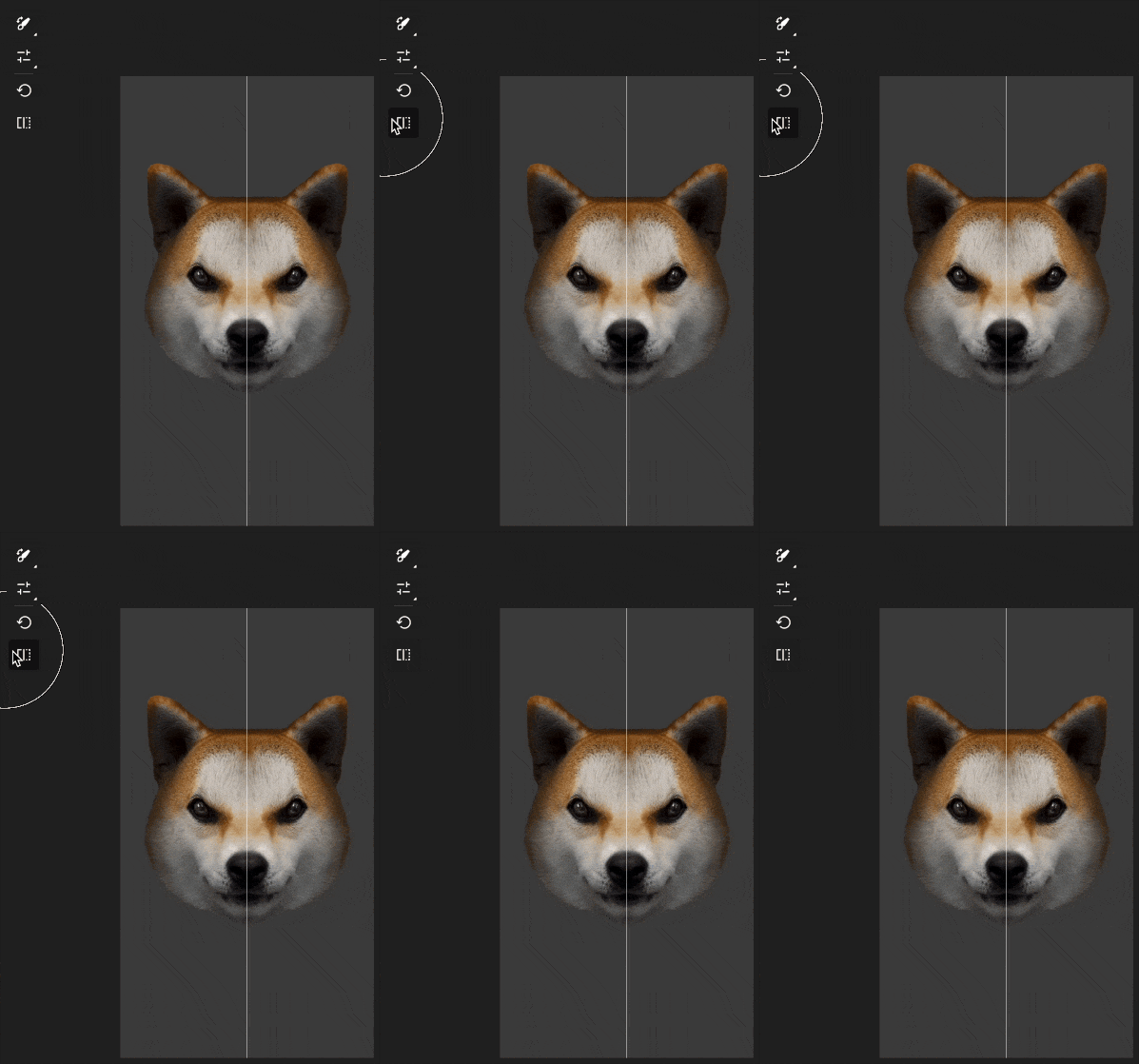
Compare Adjustments
To compare your adjustments to the original effect, click the Compare button.
Components
The Dog Face Reshape object is made up of the following components, found in the Inspector panel: