Liquify
Liquify gives you the freedom to control the proportions of multiple facial and body features.
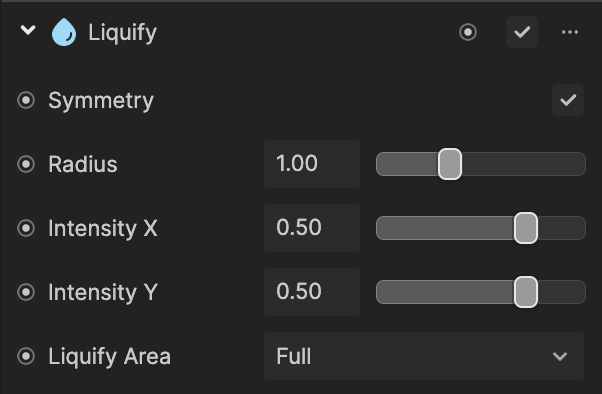
Add a Liquify Component
Add a Liquify component by clicking + Add Component > Utility > Liquify in the Inspector panel.
Properties
| Property | Description |
|---|---|
| Symmetry | Checking this box will apply the liquify evenly to both sides of the face. |
| Radius | Determines the radius of the liquify circle. Use the slider to set the radius to a value between 0 and 3. The default value is 1. See the demonstration below. |
| Intensity X | Determines the amount of vertical compression along the x-axis for the liquify circle. Use the slider to set the intensity to a value between -1 and 1. The default value is 0.5. See the demonstration below. |
| Intensity Y | Determines the amount of horizontal compression along the x-axis for the liquify circle. Use the slider to set the intensity to a value between -1 and 1. The default value is 0.5. See the demonstration below. |
| Liquify Area | Choose what part of the liquify circle the effect is applied to. See the demonstration below.
|
Demonstrations
Radius

Intensity X

Intensity Y

Liquify Area


